Print Looking Wrong? Easy Fixes for Printing PDFs at Home

Disclosure: This post may include affiliate links. As an affiliate, I earn from qualifying purchases. See our Affiliate Disclosure.
Jump to:
- Quick Checklist Before You Print a PDF
- Printable Product Troubleshooting Guide
- Why Printing PDFs at Home Can Be Tricky
- Common Mistakes to Avoid When Printing PDFs
- Frequently Asked Questions About Printing PDFs at Home
- Final Tips for Printing PDFs at Home
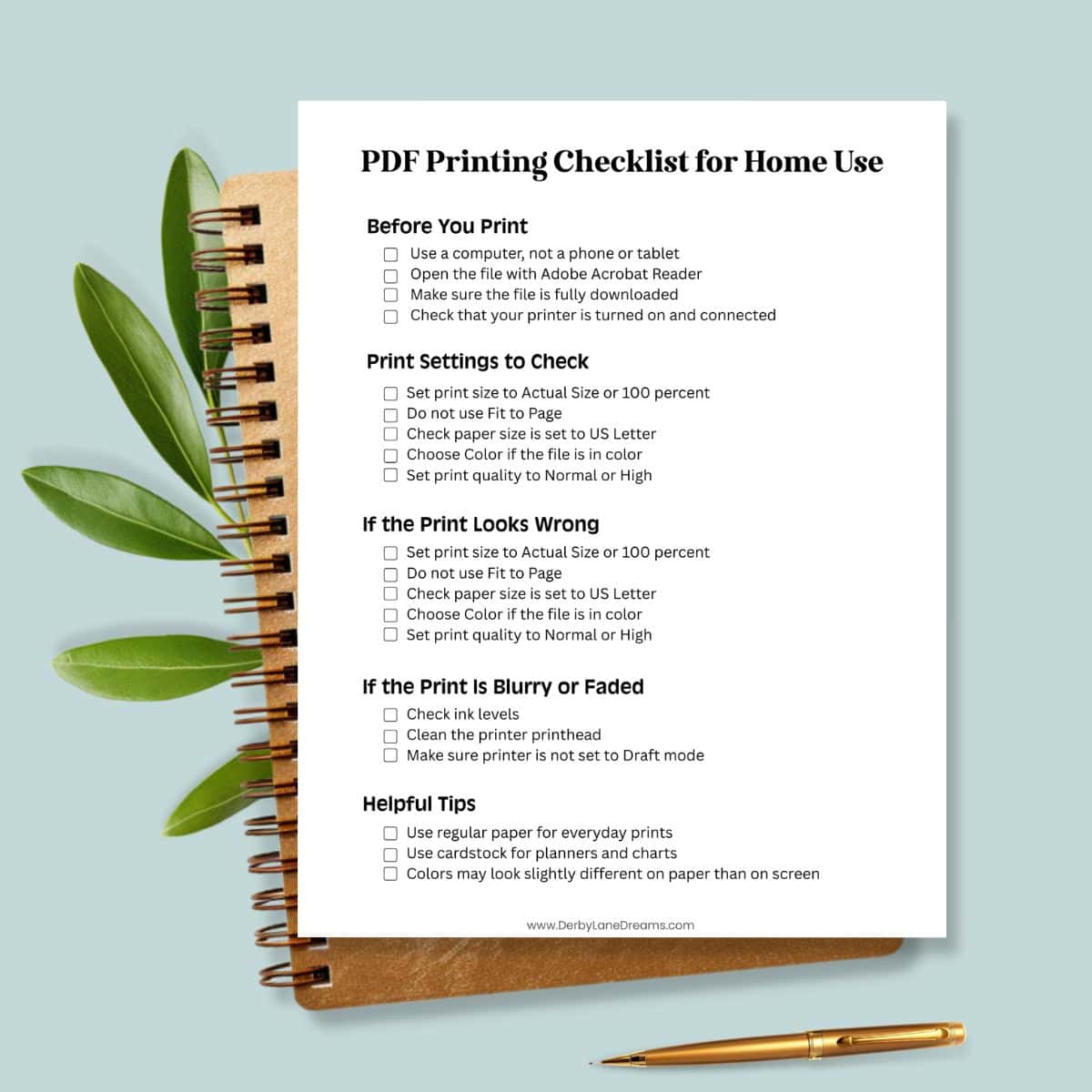
- Click the image below to download the PDF Printing Checklist.

Printing a PDF at home should be simple, but sometimes the page looks too small, gets cut off, or the colors do not look right. If you are having trouble printing PDFs at home, you are not alone. This guide will walk you through the most common printing problems and show you easy fixes you can try right away so your pages print the way they should.
Quick Checklist Before You Print a PDF
1) Use a Computer Instead of a Phone or Tablet
Always download and print from a computer. Phones and tablets often change the size of files and cause print issues.
2) Open the File With Adobe Acrobat Reader
PDFs print best when opened with the free Adobe Acrobat Reader. Other programs may shrink or change the file. Once downloaded, open the program, click File > Print. Select your printer and set the number of copies you want to print. Double check your print preview, then click print.
3) Set Print Size to Actual Size or 100 Percent
In your printer settings, choose Actual Size or 100 percent. Do not use Fit to Page.
4) Check Your Paper Size
Make sure your printer is set to US Letter if you are printing in the United States. Or, set it to the type of paper you have on hand.
Printable Product Troubleshooting Guide
This section covers the most common PDF printing problems and how to fix them step by step.
I Cannot Find My PDF Download
- Check Your Email - Look in your inbox for the download email. Be sure to check your spam or junk folder too.
- Check Your Account - If you downloaded the file from a website, log into your account and look for a Downloads or Purchases section.
- Check the File Type - Most printables are PDF files. Some downloads come in a folder that needs to be opened first.
My PDF Will Not Open or Says It Is Damaged
- Download the File Again - Sometimes a download stops before it finishes. Delete the file and download it again.
- Update Adobe Acrobat Reader - Make sure you are using the most recent version of Adobe Acrobat Reader.
- Try a Different Browser - If the file will not open, try downloading it using Chrome, Safari, or Firefox.
My PDF Prints Too Small, Cut Off, or Shifted
- Check the Print Scale - Open your printer settings and choose Actual Size or Custom Scale set to 100 percent.
- Match the Paper Size - Make sure your printer paper matches the file size, usually US Letter.
- Try Borderless Printing - If your printer allows it, borderless printing can help reduce white edges.
The Colors Look Different When Printed
- This Is Normal - Screens use light and printers use ink. Printed colors may look slightly different.
- Use Better Paper - Cardstock or high quality paper gives brighter colors.
- Update Your Printer Software - Keeping your printer software updated can improve print quality.
My PDF Prints Blurry, Streaky, or With Lines
- Clean the Printer - Use the clean printhead or cleaning option in your printer settings.
- Check Ink Levels - Low ink can cause streaks or faded areas.
- Change Print Quality - Make sure your printer is not set to Draft mode. Choose Normal or High quality instead.
My PDF Prints in Black and White Only
- Check Color Settings - Open printer settings and make sure Color is selected instead of Black and White.
- Look in Advanced Settings - Some printers hide color options under Preferences or Properties.
Why Printing PDFs at Home Can Be Tricky
PDF files are designed to keep everything in place. When printer settings are off, even a little, the page can look wrong. Most printing problems come from scale settings, paper size, or printing from the wrong device.
Common Mistakes to Avoid When Printing PDFs
- Printing from a phone or tablet
- Using Fit to Page instead of Actual Size
- Opening PDFs in preview programs instead of Adobe Reader
- Using low ink or draft mode
- Not checking paper size before printing
Avoiding these mistakes can save time and frustration.
Frequently Asked Questions About Printing PDFs at Home
This usually happens when Fit to Page is selected. Choose Actual Size or 100 percent instead.
It is not recommended. Phones often resize files and cause printing problems.
Regular copy paper works for everyday use. Cardstock is better for planners, charts, and keepsakes.
Screens and printers use different color systems. Slight color changes are normal.
No. The free Adobe Acrobat Reader is all you need.
Final Tips for Printing PDFs at Home
If your print still does not look right, take a breath and try again. Most issues are caused by simple settings that are easy to fix. Bookmark this page so you can come back anytime you need tips for printing PDFs at home.
Also, if you are still having trouble after trying these steps, double check your printer manual or reach out to your printer brand for support.
Printing should feel helpful, not stressful. Once your settings are right, your pages will print clean, clear, and ready to use.
Click the image below to download the PDF Printing Checklist.